Two-Factor Authentication
Two-factor authentication (2FA) adds an extra layer of protection to your account by requiring a 6-digit code from your authenticator app when you sign in.
Before 2FA is enabled
When 2FA is disabled, the page shows a warning that your account is at risk and that 2FA is required for some sensitive actions.
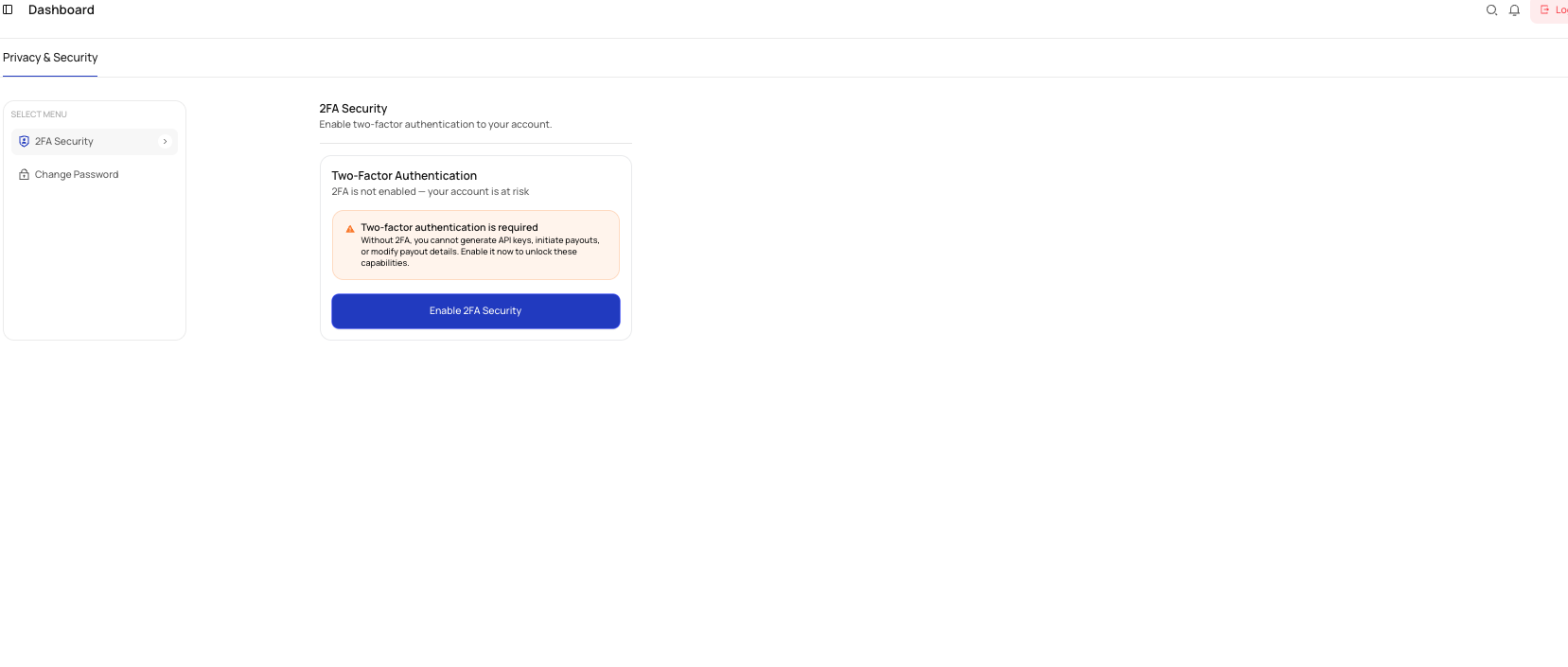
Enable 2FA
Open Settings
Go to Settings from the left navigation.
Open 2FA Security
Under Privacy & Security, select 2FA Security.
Select Enable 2FA Security
Use the button on the card to begin setup.
Complete setup with your authenticator app
Scan or connect the authenticator app as prompted and save any backup codes provided.
Confirm setup
Finish the verification flow so 2FA becomes active on your account.
What happens after 2FA is enabled
Once enabled:
- Sign-ins require a code from your authenticator app
- You can regenerate backup codes
- You can disable 2FA later if needed
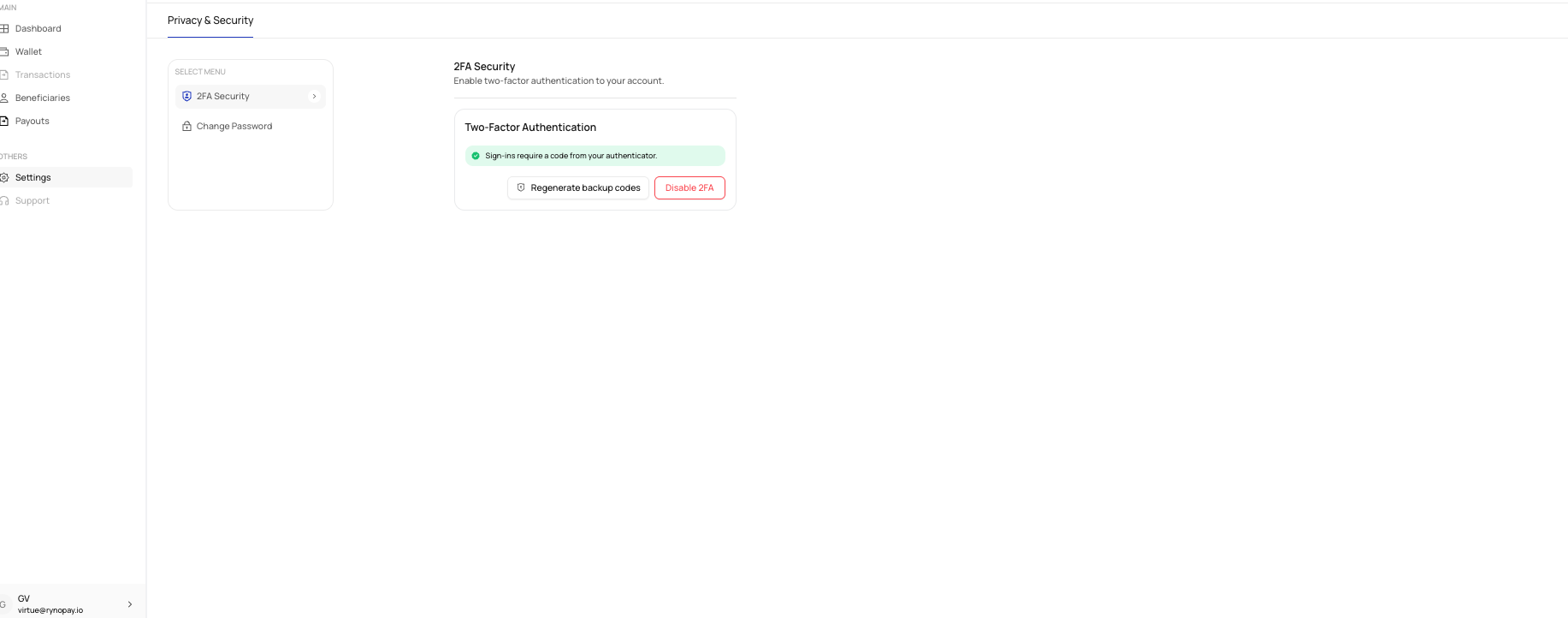
2FA during sign-in
After you enter your email address and password, Ryno prompts you to enter the 6-digit code from your authenticator app.
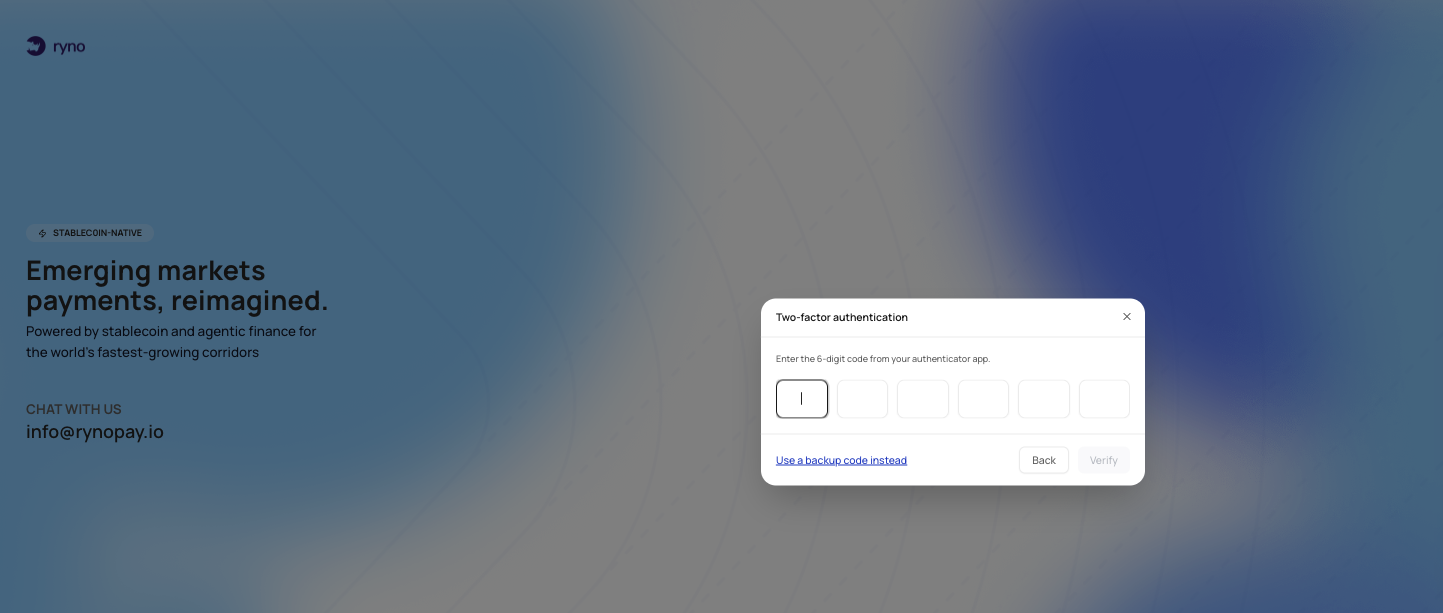
You can also choose Use a backup code instead if you do not have access to your authenticator app.
When 2FA is required
Based on the interface shown, 2FA is required before you can:
- Generate API keys
- Initiate payouts
- Modify payout details
If you lose access to your authenticator app, try a backup code first. If that does not work, contact Ryno Support.